 Invoice Maker
Guides › Making an invoice on a Mac
How to make an invoice on a Mac
Whether you freelance, run a small trade business or bill the odd client on the side, a clear invoice gets you paid faster. On a Mac you can make one with Apple's free Pages or Numbers, or with a dedicated invoice app. This guide covers what every invoice needs, how to save and send it as a PDF, and how to keep track of who has paid, with an example and a look at which tool suits you.
The short version
- Put your business details and the client's details at the top.
- Give the invoice a unique number, an issue date and a due date.
- List the work as line items with quantity, rate and amount.
- Add any discount and tax, then the total.
- Say how to pay you.
- Export it as a PDF and email it.
- Mark it as paid when the money arrives, and follow up when it's overdue.
1. Start with your details and the client's
The top of the invoice should make it obvious who it's from and who it's for:
- Your business: name, address, email and phone, plus your logo if you have one.
- The client: the person or company paying, with their address and email. Use the name their accounts team will recognise.
- A tax number such as a VAT, GST or ABN number, if you're registered and your country requires it on invoices.
2. Number it and set the dates
Every invoice needs a unique invoice number. Numbers in order (001, 002, 003) are simplest and make it easy to spot a missing one. Never reuse a number, even for a cancelled invoice.
Add two dates: the issue date (when you send it) and the due date. Most businesses use standard payment terms:
- Due on receipt: payment is expected straight away.
- Net 15 or Net 30: payment is due 15 or 30 days after the issue date.
Write the actual due date, not just "Net 30". "Due 5 December 2026" leaves no room for doubt.
Tip: a short prefix such as "INV-" or the year ("2026-014") makes invoices easy to search for in your email. If you run two businesses, give each its own sequence.
3. List the work as line items
Each line should describe one thing you're charging for, with a quantity, a rate and the amount. "Website design, 12 hours at $95" is clearer than a single "Design work: $1,140" and heads off questions. For trades, list labour and materials on separate lines.
4. Add discounts, tax and the total
Below the line items, show the subtotal, any discount, the tax with its rate (for example "Sales tax 8.5%"), and the total due in bold. Apply the discount before tax, and state the currency if your clients might pay in another one.
5. Tell the client how to pay
An invoice without payment instructions waits in someone's inbox. Add your bank details, PayPal or Venmo address, or whatever method you accept, and a short note such as "Thank you for your business" or your late-payment terms.
6. Save it as a PDF and send it
Always send a PDF, not a Pages or Numbers file. A PDF looks the same on every device and can't be edited by accident. Name the file so it's easy to find later, for example "Harbor Coffee Invoice 042.pdf", attach it to an email and put the invoice number and total in the subject line.
7. Track it until it's paid
Keep a list of every invoice you've sent with its due date and status: paid, pending or overdue. Check it once a week, mark invoices as paid as soon as the money arrives, and send a polite reminder on anything past due.
A reminder can be short: "Hi Sam, a quick reminder that invoice 042 for $1,638.89 was due on 5 December. I've attached it again in case it got lost. Thanks!" Attach the PDF again so they don't have to search for it.
An example invoice
Here is a simple invoice from a design studio to a café, with a 5% discount and sales tax:
| Item | Qty | Rate | Amount |
|---|---|---|---|
| Website design | 12 hrs | $95.00 | $1,140.00 |
| Logo refresh | 1 | $450.00 | $450.00 |
| Subtotal | $1,590.00 | ||
| Discount (5%) | −$79.50 | ||
| Sales tax (8.5%) | $128.39 | ||
| Total due | $1,638.89 |
Above the table sit the studio's logo and details, the café's name and address, invoice number 042, an issue date of 5 November and a due date of 5 December (Net 30). Below it are the bank details and a one-line thank-you.
Pages, Numbers or an invoice app?
All three can produce a professional PDF. The difference is how much work each invoice takes and whether you can see what you're owed.
Pages or Numbers
- Free on every Mac
- Numbers has an Invoice template and adds up the totals
- You number, copy and file each invoice by hand
- No list of who has paid unless you keep one
Invoice app
- Clients and items saved, so invoices take a minute
- Numbers and due dates filled in for you
- Paid, pending and overdue in one list
- The same invoices on your iPhone and iPad
If you send a couple of invoices a year, a Numbers template is fine. Once you invoice every week, saved clients and a paid/overdue list save real time.
How to make an invoice in Invoice Maker on Mac
Invoice Maker is a native Mac app for invoices and estimates, also on iPhone and iPad. Set up your business once and every invoice after that is a few clicks.
Set up your business once
In Settings, open Business and click Add Logo, then fill in your details. Add your bank or other details under Payment Methods and your tax rates under Taxes. They appear on every new invoice.
Create the invoice
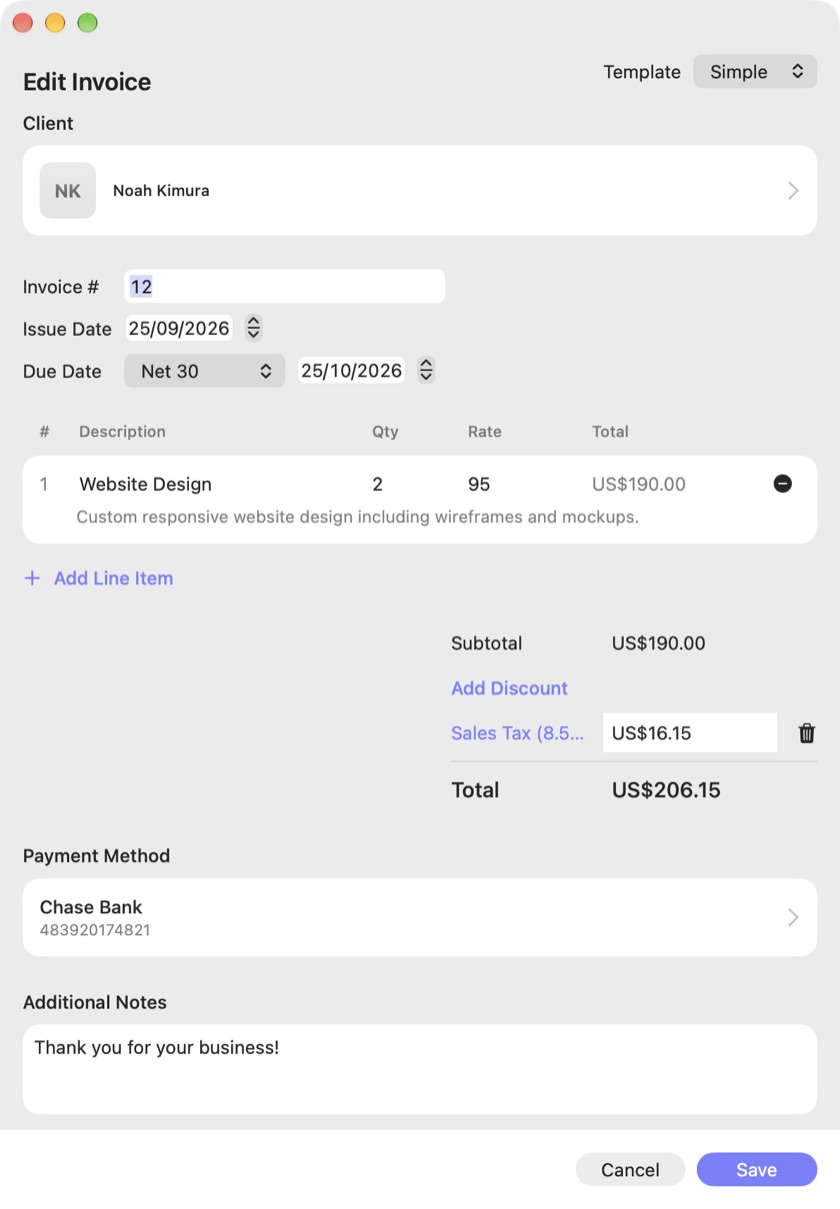
Press ⌘N or click New Invoice. The form opens in its own window:
- Choose the Client, or add a new one.
- The Invoice # continues from your last one, and Due Date offers On Receipt, Net 7, 15, 30, 45 or 60, or a custom date.
- Click Add Line Item for each piece of work, with description, quantity and rate.
- Use Add Discount if you need one; your default tax is added for you.
- Pick a Payment Method, add Additional Notes, choose a Template (Classic, Modern or Simple) and click Save.
Send it and track payment
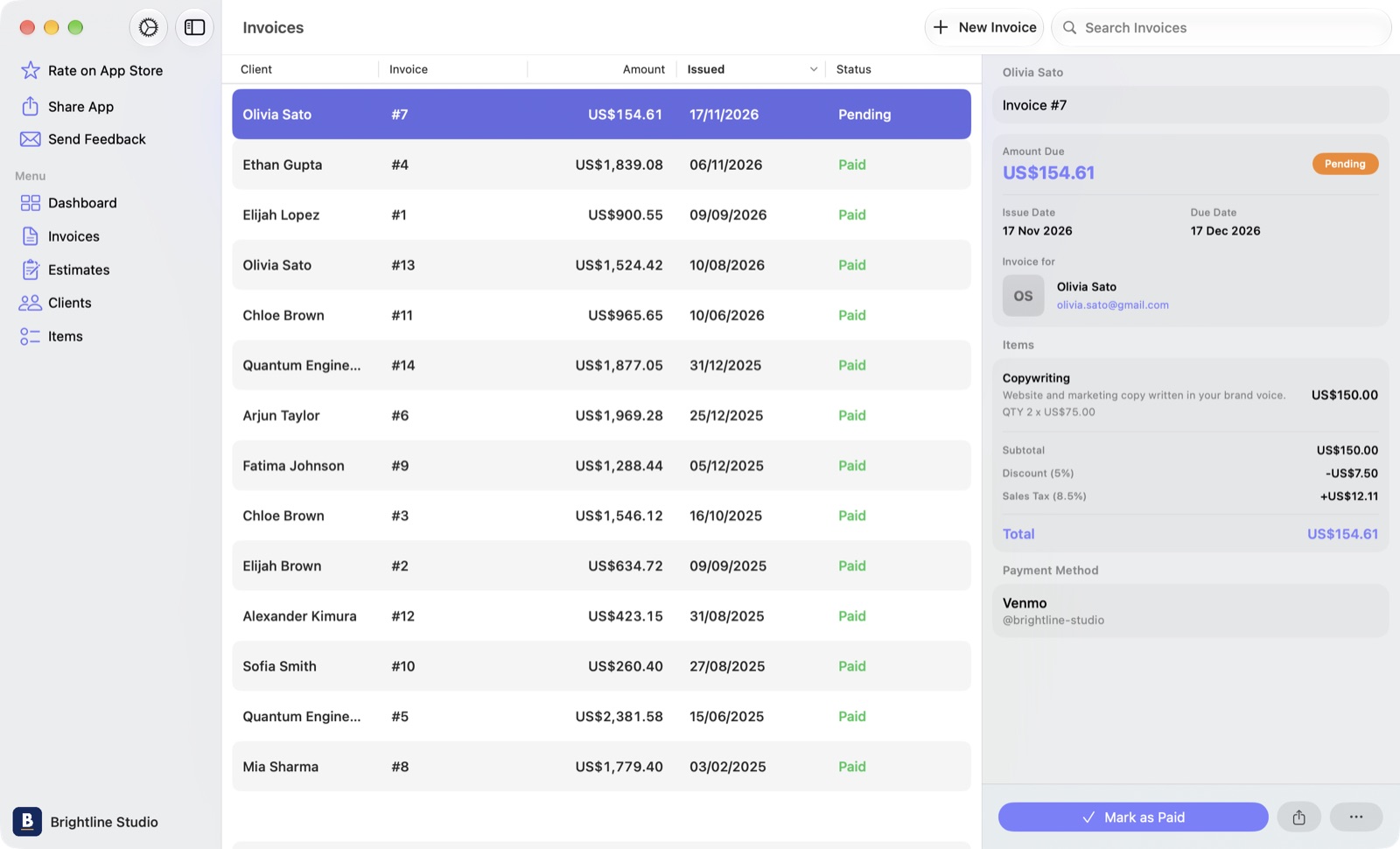
Click Export PDF and attach the file to an email (exporting needs Invoice Maker Pro). The Invoices table shows every invoice with its client, amount, issue date and status, and you can sort it or search it. Select one to see its details, then click Mark as Paid when the money arrives.
Quoting a job first? Create an estimate with ⇧⌘N and use Convert to Invoice when the client says yes. More on the Mac app page, or see support for setup questions.
Questions
Does a Mac have a built-in invoice template?
Numbers, Apple's free spreadsheet app, includes an Invoice template in its template chooser, and it works out the totals for you. In Pages you can lay one out yourself with a table. Both can export the finished invoice as a PDF.
How do I save an invoice as a PDF on a Mac?
In Pages or Numbers, choose File, then Export To, then PDF. From almost any other app you can use File, then Print, then choose Save as PDF from the PDF menu at the bottom of the print dialog. An invoice app can usually export the PDF in one step.
What is the best invoice app for Mac?
Look for a native Mac app that saves your clients and items, numbers invoices for you, shows which invoices are paid or overdue, exports a clean PDF and syncs with your iPhone. If you only send a few invoices a year, a Numbers template may be all you need.
Is Invoice Maker free on Mac?
Invoice Maker is free to download, and you can set up your business, clients and items and create invoices and estimates. Exporting or sending the PDF needs Invoice Maker Pro, which is a subscription or a one-time Lifetime purchase. One purchase covers Mac, iPhone and iPad.